How to Show Your Heartrate on Stream
Do you play scary or intense games and wish you could show your heartrate to your viewers? Well, you can! With this method, you will be able to display your heartrate on your co...
LOBy Lowco1 min read
Do you play scary or intense games and wish you could show your heartrate to your viewers? Well, you can! With this method, you will be able to display your heartrate on your computer and capture the live feed to your stream. Note that this is just one way to do it, if you’ve developed another method feel free to send us your guide!
Equipment Needed
- Computer
- Capture/Streaming software (i.e OBS or XSplit)
- Mio LINK heartrate monitor
- Suunto Movestick Mini (ANT+ receiver)
- Golden Cheetah software
Quick Guide
- Plug in your Suunto Movestick.
- Strap on your Mio Link heartrate monitor and turn it on.
- Add your device to Golden Cheetah.
- Start the training and observe your heartrate feed is working.
- Window capture Golden Cheetah and region select to crop.
Full Guide
- Plug in your Suunto Movestick.
- Strap on your Mio Link heartrate monitor and turn it on.
- Add your device to Golden Cheetah:
- Tools -> Options -> Training
- Hit the plus sign in the lower right hand corner
- Select ANT+ and your device should appear
- Click on the Train tab.
- From here you can adjust what you are viewing to your liking, making the “Heartrate” number large and shrinking the other windows. I set mine up to have Heartrate displayed on its own tab
- You can hit the “More” button when hovering over any of the fields and select “Remove Chart” to clear out all of the extra fields
- Click the “Power” button on the player to begin recording your heartrate
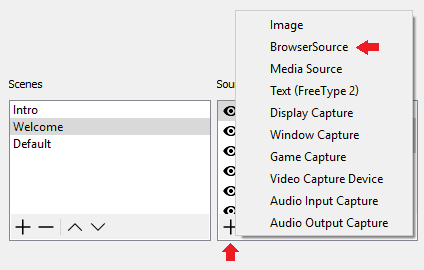
- Set up a Window capture for Golden Cheetah.
- The Window will likely be titled the name of the profile you created when setting up Golden Cheetah
- Crop as desired
- Deselect “Capture Cursor”
- Use a Color Key filter to remove the background (optional)
- Optional: Adjust colors and font settings in Golden Cheetah.
- Tools -> Options -> Appearance
- Default will change the font style and size
- Colors tab -> Heart Rate to change the font color. ‘Train Plot Background’ to change the background color.


Written by
Go further
Want a second set of eyes on your stream?
Our consultants have grown channels from a handful of viewers to Partner. Book a 1-on-1 session and get advice specific to your content, your numbers, and your goals.
Meet the consultants